Printer App: Print Documents
FIRE LtdTools
3.8196.00 Reviews
- Version
- 31.0
- Installs
- 100.00K
- Age Rating
- Everyone
Screenshots
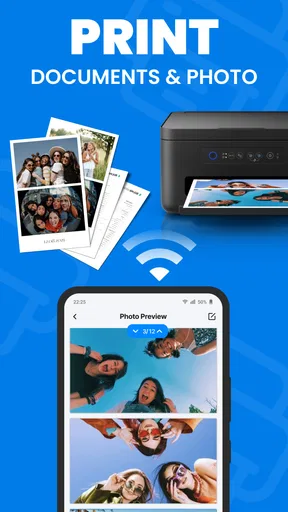
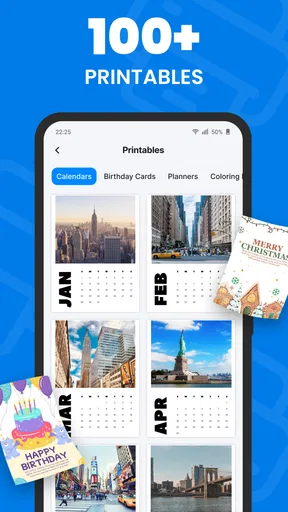
Our Review of Printer App: Print Documents
 Analysis by Appyee
I approached Printer App: Print Documents as a practical tool rather than something I would keep open all day. Its purpose is simple: help me move documents and images from a phone to a printer without first transferring everything to a computer. That sounds basic, but the value depends on how quickly it gets me from a file on my screen to a usable paper copy.
In my experience, the right question is not whether a printer app can print. The better question is whether it fits the way I already handle files, photos, and printers. If I occasionally need a boarding document, a signed form, a school page, or a photo on paper, a direct phone workflow can be much less annoying than searching for a cable or opening a desktop program. If I need detailed print production controls every day, my expectations are higher.
What I looked for before relying on it
I judged this Android tools app by four practical points: how easily I could begin, whether the intended files were easy to reach, how much control I had before sending a job, and whether the free entry point made sense for occasional use. These criteria matter more than a long feature list because printing is usually a short task performed under time pressure.
The app is made by FIRE Ltd and is free to install, which makes it easy to test without committing money at the start. It is marked for Everyone, and it runs on Android 7.0 or later. That broad compatibility is useful for households where not every phone is new, although an older operating system or an older printer can still affect the overall experience.
The current release is version 31.0. I would still treat the version number as a reason to keep the app updated, not as a guarantee that every printer behaves identically. Wireless printing depends on the phone, the printer, and the network path between them, so a smooth result in one room does not automatically mean the same result in every home or office.
Its public reception is mixed but reasonably encouraging: it holds a 3.8 average from around 12 thousand ratings, with 196 written reviews. More than 100 thousand people have installed it. I read those figures as a sign that the app has a real audience, while the less-than-perfect average is a useful reminder to avoid assuming that setup will be effortless for everyone.
The first decision: occasional printing or a regular workflow?
For occasional printing, convenience is usually the main benefit. I do not want to install a full desktop suite just to print a PDF once. A phone-based tool earns its place when it reduces the number of steps between receiving a file and producing a page. That is especially true when the document arrives through messaging, email, cloud storage, or a browser and I already have it on the phone.
For regular office work, the decision is different. I would want predictable handling of page ranges, paper choices, orientation, scaling, and multiple copies. If those controls are central to your routine, compare the app with the printer maker’s own mobile software and with your phone’s built-in printing route before moving your whole workflow.
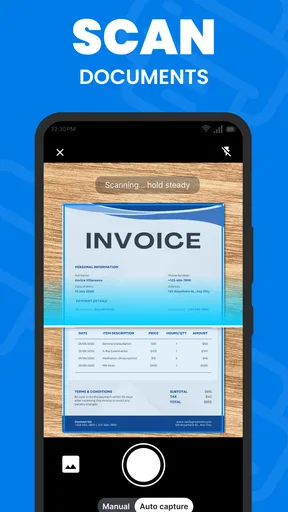
My most useful test was a realistic one: imagine receiving a PDF while away from a computer and needing a paper copy before leaving home. The sensible workflow is to open the file, send it into the printer app, select the available printer, check the preview or print choices, and submit the job. The fewer times I need to save, rename, or move that file, the more valuable the app becomes.
Where the direct phone approach is genuinely helpful
The strongest use case is mixed personal printing. One moment I may need a document, and the next I may want a photo. Keeping both tasks in one mobile tool is more convenient than maintaining separate routines for documents and images. This is where the app feels more useful than its very short store description suggests: it is aimed at the handoff from phone content to physical output.
I also like the idea of printing immediately after editing or downloading. A form can be completed on the phone, checked, and sent to paper without first locating a laptop. A travel document can be printed while the information is still fresh. A parent can receive a school attachment and prepare it from the same device used to read the message.
There is a small but important workflow tip here: prepare the file before opening the printer tool. Crop a photo, finish document edits, and close unnecessary apps first. Printing is easier to troubleshoot when the source file is final. If the result is wrong, I can then decide whether the issue came from the document itself, the selected print settings, or the printer connection, instead of changing several things at once.
Another useful habit is to check the page appearance before confirming a document job. A PDF that looks fine on a phone can still contain wide margins, an unexpected orientation, or content close to the edge. I would not assume that a phone preview represents every detail of the physical page. For important forms, I would print a test page or use a spare sheet before committing to a larger batch.
Photos are convenient, but paper output needs judgment
Printing photos directly from a phone is attractive because the images are already there. It avoids the common detour of exporting pictures to a computer or removable storage. For a quick snapshot, a family picture, or a small personal project, that shorter route is the main reason I would choose this app.
At the same time, I would be careful with photos that matter. A phone screen can make an image appear brighter or more vivid than the final print. The app can help send the image to the printer, but it cannot change the limitations of the paper, ink, lighting, or printer hardware. I would use it for convenience first, not as a replacement for a dedicated photo-printing workflow when color accuracy is critical.
A practical trick is to keep the original image untouched and make a separate copy for printing. That lets me crop or adjust the print version without losing the file I may want later. It also makes it easier to compare a second attempt if the first paper result is too dark, poorly framed, or not the size I expected.
How it compares with the usual alternatives
The closest alternative is often the printer manufacturer’s own app. That option may be the better choice when I need model-specific maintenance, ink information, scanning, or advanced controls tied to one brand. The trade-off is that a manufacturer app can feel less useful when I switch between printers or simply want a neutral way to print a file from my phone.
The built-in Android printing path is another sensible comparison. It may be enough for people who already see their printer automatically and only need basic output. In that situation, adding another app can create an extra layer rather than removing one. I would choose Printer App: Print Documents when its file-to-printer route feels clearer for my particular phone, not merely because it has a separate icon.
Cloud-based printing and computer printing suit different habits. A computer remains preferable for long documents, careful layout work, repeated business jobs, and tasks where a large screen makes checking details easier. Cloud services can be useful when the printer is elsewhere or when several people share a workflow, but they may introduce account steps and file handling that are unnecessary for a one-off page.
There is also a basic cable connection. It can be more dependable when wireless discovery is unreliable, but it is less convenient and may require the right adapter or a compatible printer setup. The appeal of this app is strongest when the printer is already reachable and the phone is the natural place where the file lives.
When I would choose something else
I would look elsewhere if my priority were printer maintenance, scanning, fax-style tasks, or brand-specific troubleshooting. I would also prefer a computer or a more specialized solution for professional documents where exact layout, color handling, duplex behavior, or batch processing matters more than speed of access.
I would be cautious about making it the default tool for a shared workplace until I had tested the actual printers and documents used there. A short personal PDF and a complex office file are not the same test. The app may be perfectly sensible for quick jobs while still being the wrong foundation for a controlled production process.
People who rarely print at all may not need a dedicated solution. If the phone already offers a reliable print command and the printer is recognized immediately, the simplest option wins. Installing an app is worthwhile when it solves a recurring point of friction, not when it merely duplicates a function that already works.
Free entry, paid decisions, and the cost of switching
The app is free, but it includes in-app purchases priced from $5.99 to $39.99 per item. That makes the initial test low-risk, yet I would pay attention to what appears during the workflow before treating it as a permanent solution. For an occasional printer user, any paid step should be judged against how often the app saves time compared with the built-in option or the printer maker’s software.
My advice is to test the complete path before organizing important files around it. Print one ordinary document, then try one photo, and check whether the printer you actually use is found consistently. Try this at the location where you normally work, because a successful test on a different network does not tell me enough about daily reliability.
The cost of switching is not just money. It includes learning where files appear, remembering which settings to check, and deciding whether the app should become the default handler for printable documents. That is why I would avoid uninstalling an existing printer utility immediately. Keep the familiar option available until this one has handled the jobs you care about.
A useful comparison method is to print the same simple file through two routes: this app and the method already on your phone. Note which one requires fewer screens, which one makes the printer easier to identify, and which one gives you enough control before confirmation. This personal test is more meaningful than assuming that a higher number of features automatically means a better experience.
My recommendation for different kinds of users
I recommend Printer App: Print Documents to someone who keeps documents and photos on an Android phone and wants a straightforward way to get them onto paper. It is particularly appealing for occasional home use, urgent forms, quick reference pages, and casual photo output. The free starting point also makes it reasonable to test alongside an existing printing method.
I would recommend it less strongly to a print-heavy professional, a photographer who needs dependable color results, or anyone who relies on advanced printer management. Those users should compare it with the printer manufacturer’s application, the phone’s native service, and a desktop workflow before deciding. The best alternative depends on whether control, maintenance, or convenience is the main priority.
For me, the deciding strength is the reduction of needless file transfers. When the document is already on the phone and the printer is ready, a direct route is exactly what I want. The deciding weakness is that convenience should not be confused with universal compatibility or professional-level control. I would keep expectations realistic and test the actual printer before depending on it for an important deadline.
My bottom line: this is a useful free tool to try when phone-to-printer access is the problem you are trying to solve. It is not automatically better than every built-in or manufacturer option, but it can be the more comfortable choice for everyday documents and photos. If a short test handles your normal files without adding confusing steps, it earns a place on your phone; if your needs are specialized, staying with a more focused alternative is the smarter decision.
Verdict
Strengths of Printer App: Print Documents
- Prints documents, photos, and PDFs directly from your phone.
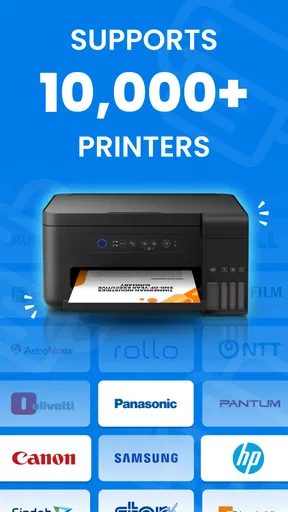
- Supports multiple printer brands over Wi‑Fi networks.
- Quick setup makes everyday printing convenient.
- Useful preview options help reduce printing mistakes.
- Can manage several files without switching between apps.
Limitations of Printer App: Print Documents
- A compatible wireless printer is required for most features.
- Some advanced tools may be limited to the paid version.
- Print quality depends heavily on the selected printer settings.
- Large files can take longer to upload and process.
- Printer discovery may fail on crowded or unstable networks.
Other Releases by FIRE Ltd
View All
Authenticator - 2FA & Password
Tools2.9

AI Logo Maker
Art & Design4.2
Similar Picks in This Category
View All
Google LLC4.0

Gboard - the Google Keyboard
Google LLC4.5

Google Play services
Google LLC4.3

Google Play Store
Google LLC4.9

Files by Google
Google LLC4.5

SHAREit: Transfer, Share Files
Smart Media4U Technology Pte.Ltd.4.3
Frequently Asked Questions
What is Printer App: Print Documents, and what can it do?
Printer App: Print Documents is designed to help you print files, photos, web pages, and other content from a mobile device. After installing it, you can generally select a document from your phone, choose an available printer, adjust basic settings such as paper size or orientation, and send the job wirelessly. Its usefulness depends on printer compatibility and the connection method supported by your device.
Does Printer App: Print Documents work with every printer?
No application can guarantee compatibility with every printer model. Printer App: Print Documents typically works best with wireless printers connected to the same Wi-Fi network as the smartphone or tablet, although supported brands and connection options may vary. Before downloading, check the app listing and your printer’s documentation for compatibility, required services, and whether a manufacturer-specific plugin or driver is needed.
Can I print documents and photos from an iPhone or Android device?
The app is intended for mobile printing and may support common file types, images, PDFs, and content shared from other applications. However, available options can differ between Android and iOS, particularly for file access, sharing, and system printing features. Make sure the documents are stored locally or in a supported cloud service, and review the app’s permissions before granting access to personal files or photos.
Is Printer App: Print Documents free to use?
The download may be free, but some features can require in-app purchases, a subscription, or the viewing of advertisements. Costs may apply to advanced printing tools, removing ads, cloud integrations, or unlimited use. Pricing and availability can change according to your country and platform, so check the official store page carefully before starting a trial or confirming payment, especially if automatic subscription renewal is enabled.
Why cannot the app find my printer, and how can I fix it?
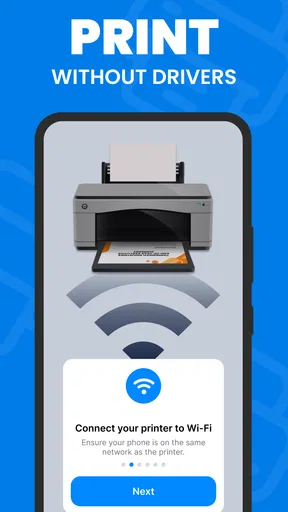
If the printer does not appear, first confirm that both the mobile device and printer are connected to the same Wi-Fi network. Restarting the app, printer, and router can also help. Check that the printer is powered on, online, and not displaying an error. You may need to enable local-network or nearby-device permissions, update the printer firmware, or install a compatible printer service before trying again.
